Archivar o desarchivar un correo electrónico con Professional Email powered by Titan
Para mantener tu bandeja de entrada ordenada, mueve los mensajes a tu carpeta Archivo. Los mensajes de la carpeta Archivo nunca se eliminan.
Select a tab based on whether you're on webmail on desktop or the mobile app.
Archivar un correo electrónico
- Inicia sesión en webmail Usa tu dirección y contraseña de Professional Email powered by Titan (tu nombre de usuario y contraseña de GoDaddy no funcionarán aquí).
- En tu bandeja de entrada, selecciona un correo electrónico.
- Encima del correo electrónico, selecciona Archivar .
El correo electrónico se moverá a la carpeta Archivo . Permanecerá en la carpeta indefinidamente a menos que la elimines o la muevas de nuevo a tu bandeja de entrada .
Desarchivar un correo electrónico
- Inicia sesión en webmail Usa tu dirección y contraseña de Professional Email powered by Titan (tu nombre de usuario y contraseña de GoDaddy no funcionarán aquí).
- En el lado izquierdo, selecciona la carpeta Archivo .
- Selecciona un correo electrónico.
- Encima del mensaje, selecciona Mover a carpeta , y luego Bandeja de entrada . Si no puedes ver Mover a carpeta , selecciona
 Más acciones , y luego Mover a carpeta .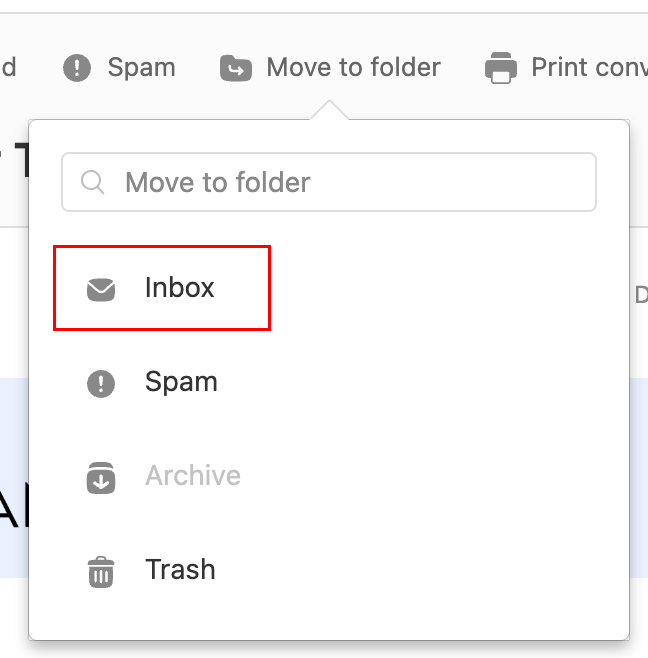
Verás un mensaje que confirma que el correo electrónico se movió a tu bandeja de entrada.
Archivar un correo electrónico
- Abre la aplicación Titan.
- In your inbox, tap an email.
- At the top of the email, tap
 Archive.
You'll see a confirmation that the conversation was moved to the archive.
Desarchivar un correo electrónico
- Open the Titan mobile app.
- In the upper-right corner, tap the
 icon for the menu. menu or swipe left, and then tap Settings.
 - Tap Archive.
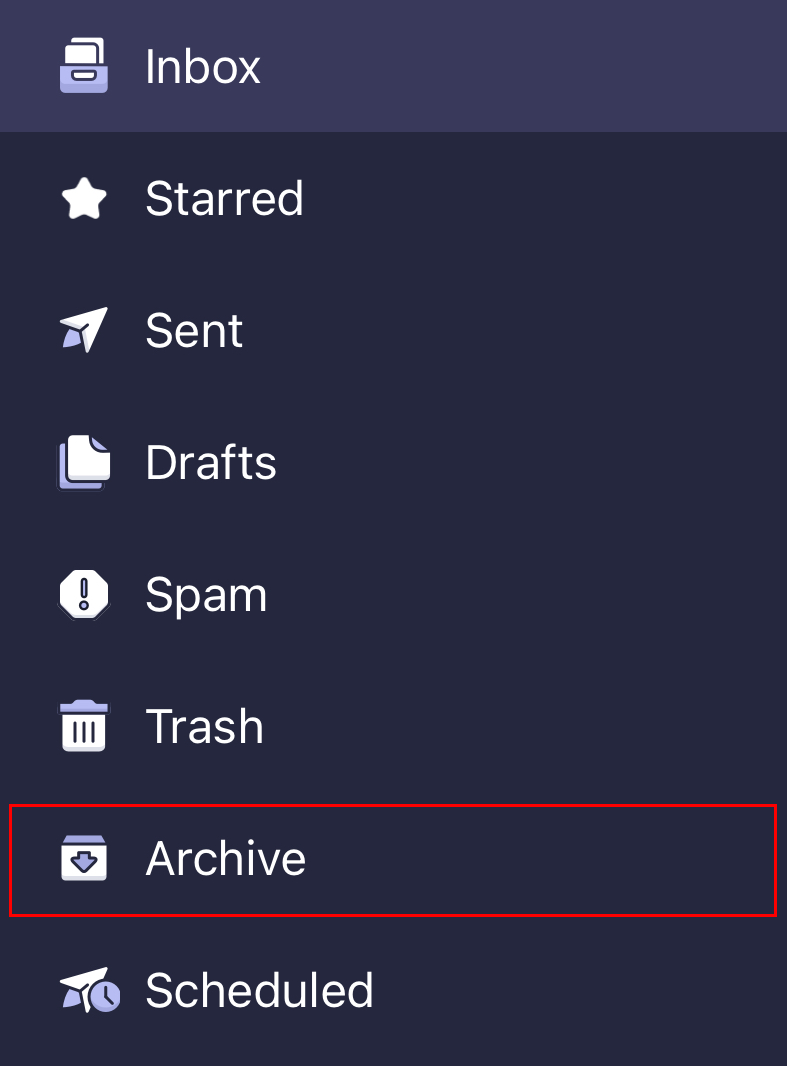
- In the upper-right corner, tap
 More actions, and then Move to folder.
 - Tap Inbox. You'll see a confirmation that the message was moved to your inbox.
Más información
- Para archivar correos electrónicos anteriores a una determinada fecha, primero filtra tus mensajes usando la Búsqueda avanzada .
- Usar etiquetas de correo electrónico para organizar mi bandeja de entrada
- Reenviar el correo electrónico entrante a otra dirección de correo electrónico